FicTrac basics & configuration
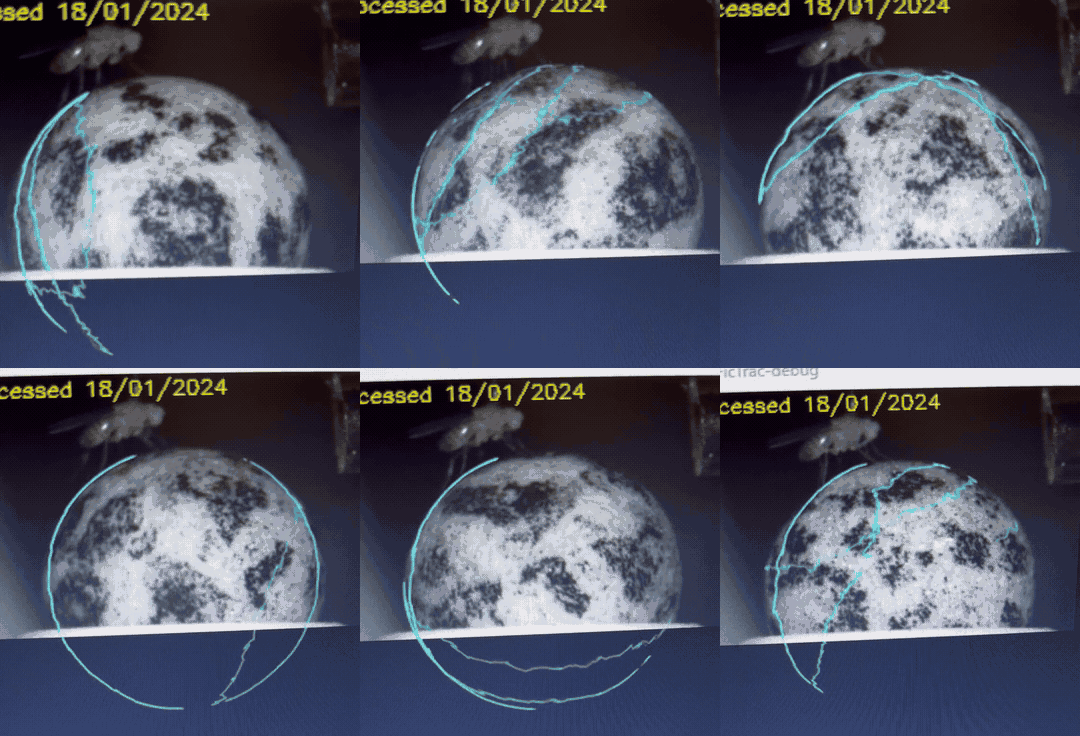 Video by Hannah Marie Santos
 FicTrac watches the air-supported ball with a camera and turns its rotation into the fly’s locomotion — turning, forward walking, and sideways motion. That signal drives the live oscilloscope in Arena Studio and powers closed-loop experiments, where the fly’s own turning steers the visual scene.
Still to add: screenshots of
configGUI, a good ball outline, the ignore regions, the coordinate transform, and a working Arena Studio oscilloscope trace.
FicTrac software and documentation: https://github.com/rjdmoore/fictrac
The mental model
- The camera sees a patterned ball. FicTrac builds a map of the ball’s surface, then each frame figures out how the ball rotated since the last frame.
- The ball’s rotation reflects the fly’s movement, because a walking tethered fly spins the ball underneath it.
- A small bridge program passes that movement to Arena Studio.
Per-rig config: one folder per rig, never overwrite
FicTrac is very sensitive to the camera’s field of view and the ball’s position, so each rig has its own tuned config folder — you can’t share one config across rigs. The folder keeps the ball circle, ignore regions, coordinate convention, and other calibration settings tied to that physical camera and arena.
The rule: never overwrite an existing config. Make a new folder instead.
- Create a new folder for this rig (or a dated copy for this config change).
- Put the config file in it.
- Copy the config file into the
reiserfolder, listed under Quick Access in every Windows Explorer window on the rig computers. The configuration files FicTrac actually runs from live in itsfictrac\cshlsubfolder. -
On Windows, right-click inside that folder and open a PowerShell/Terminal window there. Run FicTrac from that folder.
A faster way: the Windows quickstart bar has an icon with a green upward arrow. Clicking it opens a PowerShell window already at the FicTrac base directory. From there, run FicTrac with the config file’s path as an argument, e.g. for rig 2’s config file:
build\Release\fictrac.bat cshl\config02.txt - Data writes into that folder, per trial.
Keeping one folder per config means you never lose a working setup. A shared “starter” config is a good starting point but will not work as-is on every rig — you must tune it per rig.
The current July 8 working configs are archived in the course repository under configs/fictrac, one folder per rig.
Coordinate convention for this rig
During calibration, set FicTrac’s axes relative to the lab frame:
- X points at the ball center (toward the camera / down the optical axis),
- Y points to the right,
- Z points below.
Get this right for each rig: a swapped or flipped transform swaps or flips the turning and forward signals sent to Arena Studio.
Calibrating with configGUI
On Windows, open PowerShell/Terminal in the folder containing the config file, then run the config GUI (configGUI.bat). Using the quickstart-bar icon (PowerShell at the FicTrac base directory), the equivalent command for rig 2’s config file is:
build\Release\configGui.bat cshl\config02.txt
Work through its steps:
- Define the ball circle — click at least three points around the ball’s perimeter to estimate its outline. Double-right-click removes a point.
- Set ignore regions — mask out things that aren’t the ball (the pedestal, the fly). The point order matters: add the four corners as top-left, top-right, bottom-right, bottom-left.
- Coordinate transform — set the axes to the lab frame (X center, Y right, Z below), using corner points ~10 px apart (an approximately orthographic assumption). The square/plane step mostly affects output columns we don’t use for ball tracking — what matters is that X, Y, Z come out correct.
The ball map & staying tracked
- On the first run FicTrac learns a texture map of the ball. Watch it “close on itself” cleanly — a good map wraps the whole ball without seams/confusion.
- Once you have a good map, you can turn off map re-learning so it stays stable, and instead watch the reprojection error — a spike there means the map has gone stale.
- The ball pattern needs distinctive, asymmetric features. Similar-looking blobs confuse tracking; if that happens, add asymmetry (e.g. a hand-drawn L-shape or a lopsided star with a Sharpie).
Connecting FicTrac to Arena Studio (the bridge)
Closed-loop and the live scope need the bridge running on the rig computer:
- Start it with
pixi run bridge(from the webDisplayTools checkout). - Arena Studio connects to it at
ws://localhost:8765; FicTrac talks to the bridge on port 60000 (these are the rig-config defaults). - In Arena Studio, the oscilloscope switches from “waiting for FicTrac bridge” to a live trace once data flows. Closed-loop trials show a green CLOSED LOOP tag.
Quick check: load fictrac_direction_test — it runs open-loop motion first, then a closed-loop block that the fly steers. If the closed-loop block responds to nudging the ball, the bridge is working.
Common problems
| Symptom | Likely cause / fix |
|---|---|
| Scope stuck on “waiting for FicTrac bridge” | Bridge not running, or FicTrac not started. Start pixi run bridge and FicTrac. |
| Turning and forward look swapped/flipped | Coordinate transform wrong — redo the X-center / Y-right / Z-below step. |
| Tracking jumps or drifts | Stale/confused map — re-learn the map, or add asymmetric marks to the ball. |
| Ball jittery or stuck | Air flow too high/low — adjust the roller clamp for a gentle, stable float. |
Reference
- Moore et al. FicTrac software and documentation: https://github.com/rjdmoore/fictrac
- Loesche & Reiser (2021), An Inexpensive, High-Precision, Modular Spherical Treadmill Setup Optimized for Drosophila Experiments: doi:10.3389/fnbeh.2021.689573.
Updated 2026-07-10 01:47 ET.