Arena Studio — getting started
Arena Studio is the web app you use to run experiments on the LED arena. It runs entirely in your browser (Chrome or Edge) — nothing to install.
Open it: https://reiserlab.github.io/webDisplayTools/arena_studio.html
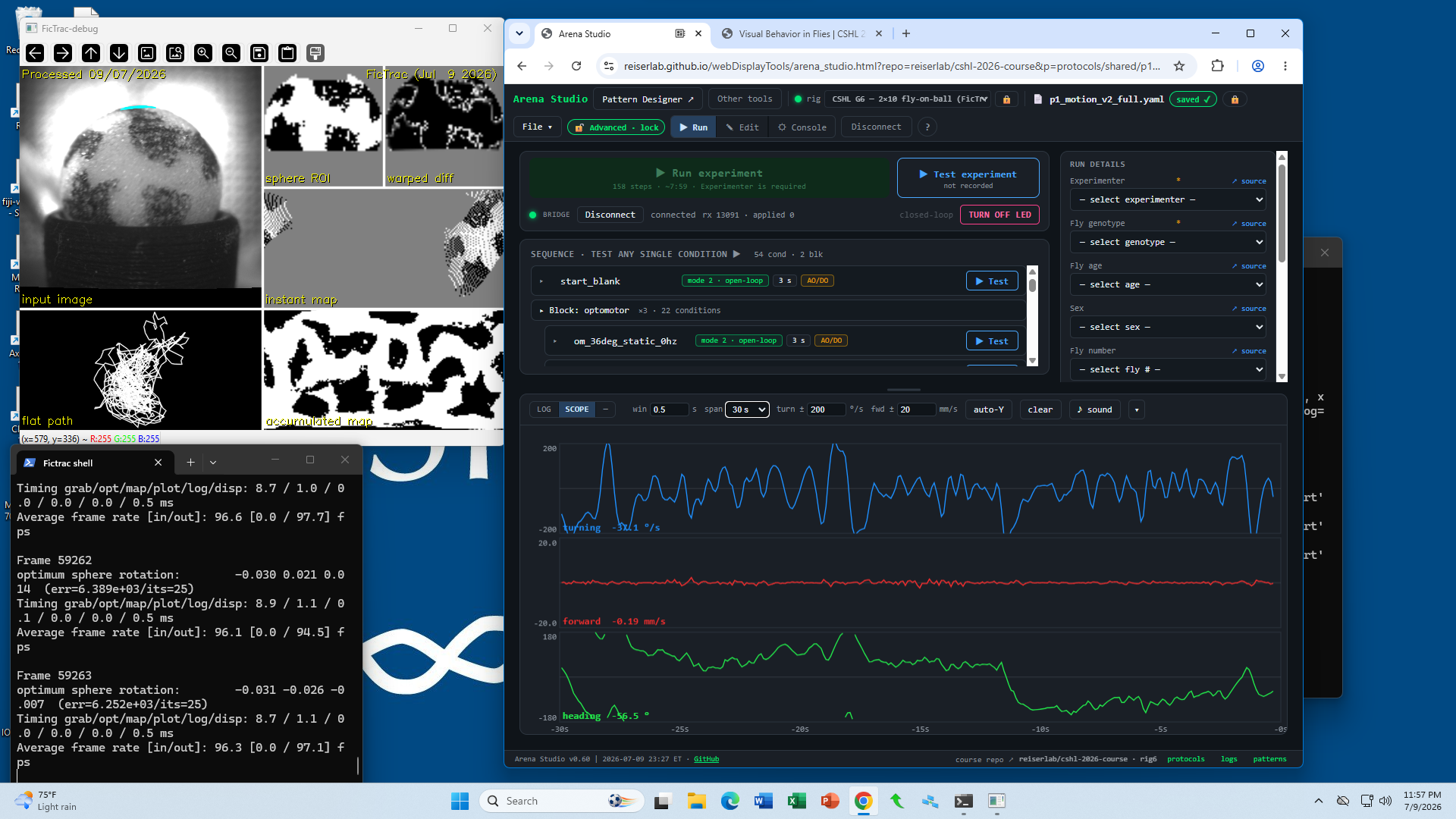
Recommended workspace: Position FicTrac and Arena Studio side by side so you can see everything that is happening.
Useful links
- Arena Studio: https://reiserlab.github.io/webDisplayTools/arena_studio.html
- Course repo:
reiserlab/cshl-2026-course - Pattern Editor: https://reiserlab.github.io/webDisplayTools/pattern_editor.html
- Pattern Editor quick start: https://github.com/reiserlab/webDisplayTools/blob/main/PATTERN_EDITOR_QUICKSTART.md
The three views
A row of buttons at the top switches between three views:
| View | What it’s for |
|---|---|
| Run | Load a protocol and run the whole experiment. This is where you spend most of your time. |
| Edit | Build or change a protocol (the designer). Read-only for students in safe mode. |
| Console | Talk to the arena directly — list patterns, test the display, drive the LED, connect to FicTrac. |
At the bottom of the Run view is a live oscilloscope that plots the fly’s turning, forward, and heading in real time while a trial runs — and a green CLOSED LOOP tag appears when a closed-loop trial starts.
Safe mode (that’s you)
By default the Studio opens in safe mode: you can view everything and run experiments, but you can’t accidentally edit protocols or change patterns. The 🛡 chip in the top bar shows it. That’s expected; see What safe mode blocks below.
Running an experiment — the short version
- Open your protocol. Your instructor will give you a bookmark link (see below), or use File ▾ → Open from Repo… and pick your protocol.
- Connect to the arena. Click Connect and choose the controller’s serial port when the browser asks. (Chrome/Edge only — this uses Web Serial.)
- Connect FicTrac (fly-on-ball rigs) — start the bridge on the rig computer and confirm the scope starts drawing the fly’s motion. See FicTrac basics.
- Fill in the run metadata on the right (experimenter, genotype, sex, age…).
- Press Run. The green button shows the step count and estimated time (e.g.
15 steps · ~0:50). Do a Test experiment first to check the fly is responsive before the full run. - When a recorded run completes, its data is committed to GitHub automatically — you don’t have to save anything. See GitHub for the course.
STOP is always available and blanks the arena immediately. If you stop the arena early and the red LED is still on, click Turn off LED so the fly is not stimulated outside the experiment.
Bookmark links (one click per protocol)
Your instructor can hand you a link that opens a specific protocol, in safe mode, ready to run. Open it in Chrome or Edge on the rig computer. The base format is:
…/arena_studio.html?repo=<owner>/<name>&p=protocols/<bench-id>/<protocol>.yaml
-
Add options at the end of the URL, after the
.yamlfilename. For example:…<protocol>.yaml&rig=cshl_g6_2x10_ball&advanced=0 &rig=<rigname>sets the bench rig.&advanced=0forces safe mode on a shared machine.- These links always open in the Run view.
Loading a protocol from the private course repo needs you to be signed in to GitHub once on that browser (File ▾ → GitHub). After that, the link just works.
What safe mode blocks
Blocked in safe mode: editing a protocol (the Edit view is read-only), saving, adding/deleting arena patterns, firmware/panel programming, and bench setup (rig + GitHub settings are locked).
Still available: viewing any protocol, connecting, running and testing, the oscilloscope, Console queries, the display test, driving the LED, and STOP.
Safe mode is a guardrail, not a lock — instructors can unlock it when a team needs to edit a protocol or make a new pattern set.
Course workflow in one pass
- Open the assigned protocol from
protocols/shared/. - Run the short version first.
- If the fly and rig look good, run the matching full version.
- Check that the completed recorded run appears in
runlogs/<bench-id>/. - After core runs, make or modify a pattern. In the run metadata’s Notes field, add
innovationplus a short description of what you changed (for example,innovation: female-like pattern, 2 repeats).
See Pattern Editor for the separate pattern-making workflow.
Troubleshooting
- “Connect” does nothing / no port list — you must use Chrome or Edge (Web Serial isn’t in Safari/Firefox). Only one browser tab can hold the port.
- The scope says “waiting for FicTrac bridge” — the bridge isn’t running or isn’t connected. See FicTrac basics.
- A link says “sign in… then Open from course repo” — you’re not signed in to GitHub on this browser. Do File ▾ → GitHub once.
- The arena won’t take a command — if the display is running, press STOP first; some commands are refused while the display is active.
Updated 2026-07-10 01:47 ET.