Pattern Editor Quick Start
Based on Pattern Editor v0.9.22
The Pattern Editor is a web-based tool for creating and editing arena display patterns. This guide covers all controls and common workflows.
Found a bug? Report it Have an idea? Request a feature
Interface Overview
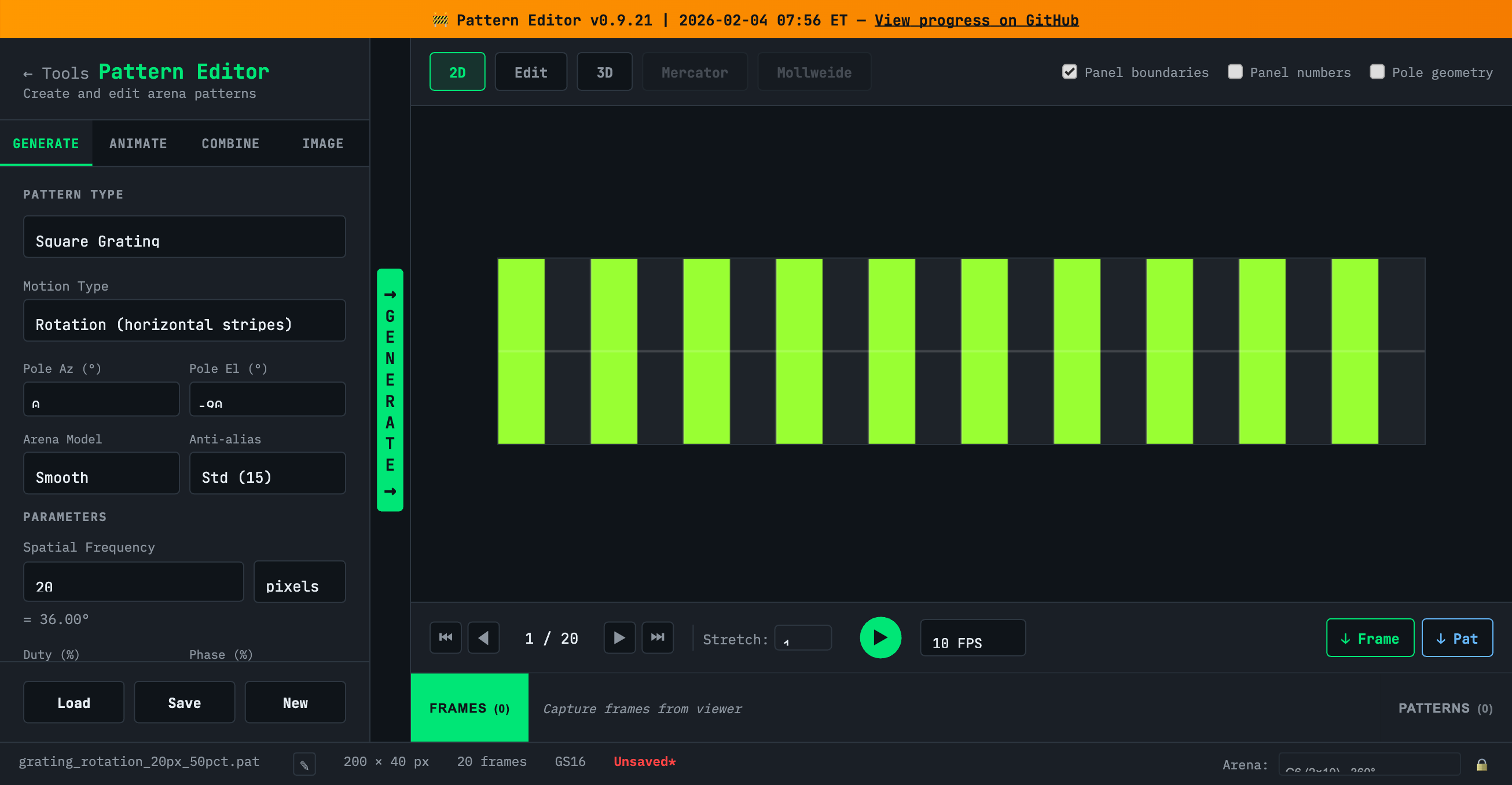
The Pattern Editor has a two-panel layout:
Left Panel: Tools
- Tool Tabs (Generate, Animate, Combine, Image) - Different ways to create patterns
- Parameters - Settings specific to each tool
- File Operations (Load, Save, New) - Manage .pat files
Center: Generate Button
- The large green GENERATE button creates a pattern from your current settings
- Click it after adjusting parameters to see your pattern in the viewer
Right Panel: Viewer
- Viewer Tabs (2D, Edit, 3D, Mercator, Mollweide) - Different ways to visualize patterns
- Display Options - Toggle panel boundaries, numbers, pole geometry
- Playback Controls - Navigate frames, play animation, adjust FPS
- Capture Buttons - “↓ Frame” captures current frame, “↓ Pat” captures entire pattern
Bottom: Clipboard & Status
- Clipboard Bar - Stores captured frames and patterns for later use
- Status Bar - Shows pattern info (filename, dimensions, frames, grayscale mode) and arena selection
Generate Tab
Create patterns mathematically using spherical coordinate transformations.
Common Workflow
- Select a Pattern Type (Square Grating, Sine Grating, Starfield, Edge, or Off/On)
- Choose Motion Type to set how the pattern wraps (Rotation, Expansion, or Translation)
- Adjust Spatial Frequency and other parameters
- Set Step Size to control animation speed (shown as frame count in green)
- Click GENERATE to create the pattern
- Preview with playback controls, then Save or capture to clipboard
Pattern Types
| Type | Description |
|---|---|
| Square Grating | Sharp on/off stripes with configurable duty cycle |
| Sine Grating | Smooth sinusoidal intensity variation |
| Starfield | Random dot field for optic flow experiments |
| Edge | Single edge that sweeps across duty cycle range |
| Off/On | Static all-off or all-on single frame |
Key Parameters
| Parameter | Description |
|---|---|
| Motion Type | Rotation (horizontal stripes), Expansion (concentric rings), Translation (linear motion) |
| Pole Az/El | Position of pattern pole (-180 to +180°, -90 to +90°) |
| Spatial Frequency | Wavelength in pixels or degrees (auto-converts) |
| Duty (%) | On-fraction for gratings (1-99%) |
| Step Size | Animation speed - pixels or degrees per frame |
| Mode | GS16 (16 levels) or GS2 (binary) |
Animate Tab
Build animated patterns from captured frames.
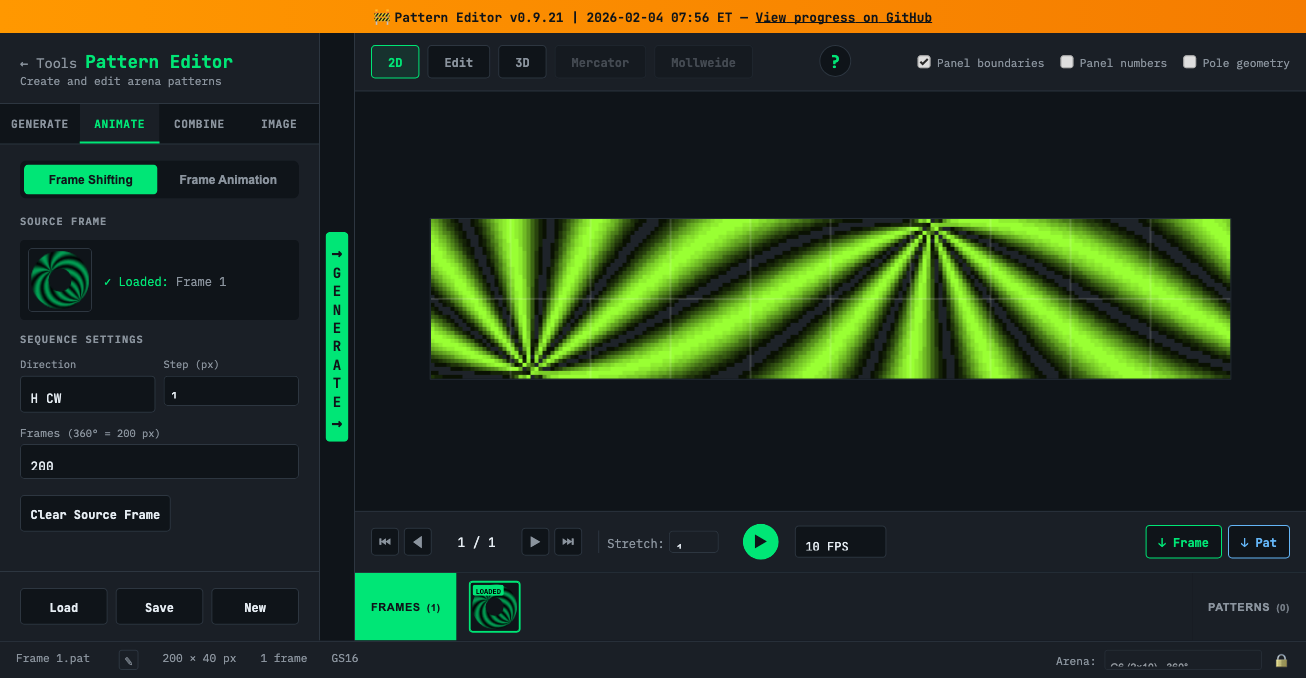
Frame Shifting Mode
Creates animation by shifting a single frame horizontally or vertically.
Workflow:
- Generate or load a pattern with a static frame you want to animate
- Click ↓ Frame to capture it to the clipboard
- Switch to ANIMATE tab, select Frame Shifting
- Double-click the frame in the clipboard to load it as source
- Choose Direction (H CW, H CCW, V Up, V Down)
- Set Step size and total Frames
- Click GENERATE to create the animated pattern
Frame Animation Mode
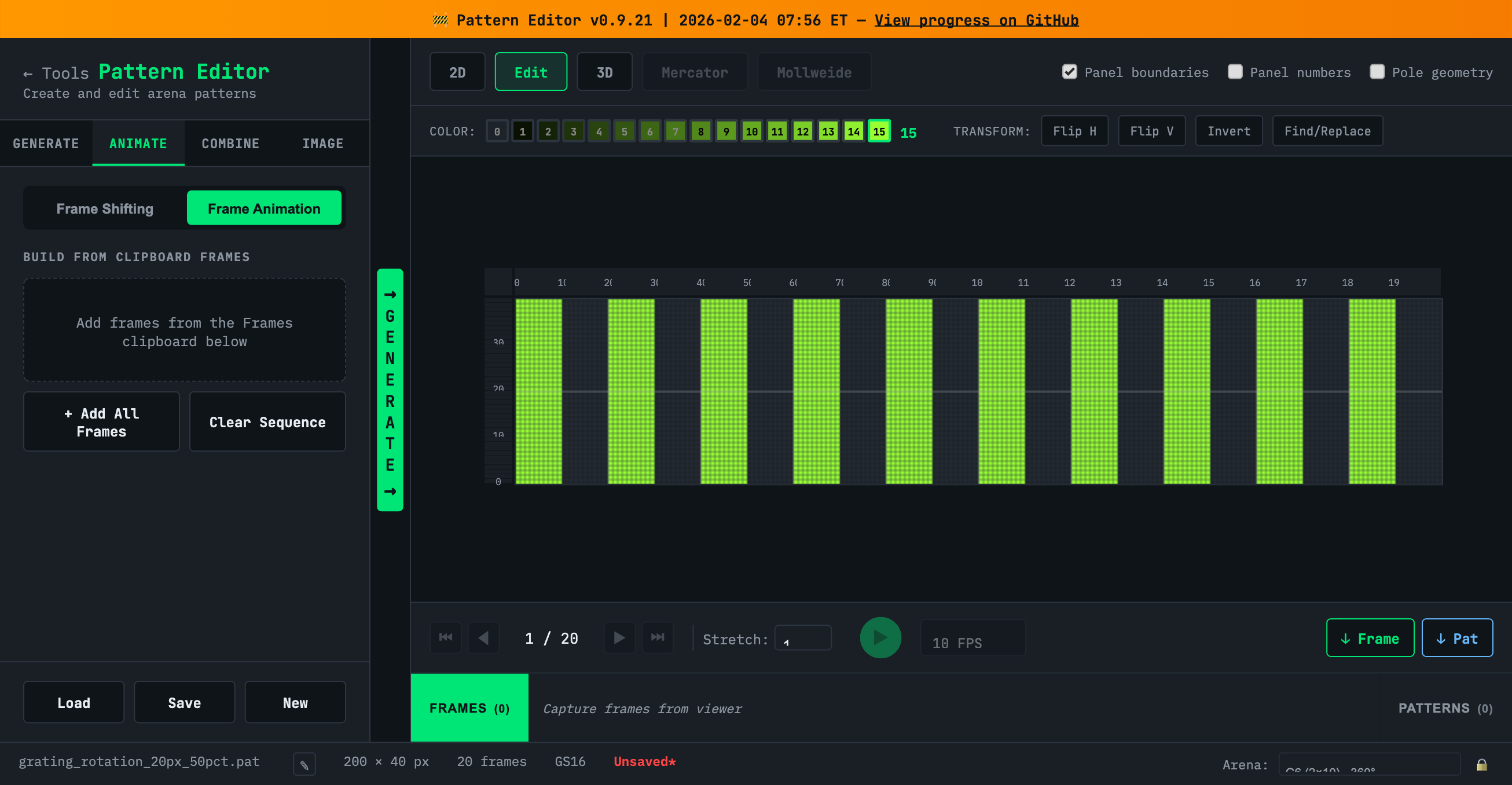
Builds a sequence from multiple frames in the clipboard.
Workflow:
- Create different static frames (generate patterns, edit them, etc.)
- Capture each frame to clipboard with ↓ Frame
- Switch to ANIMATE tab, select Frame Animation
- Click + Add All Frames or drag individual frames into the sequence
- Reorder frames as needed
- Click GENERATE to create the animated pattern
Combine Tab
Merge two patterns together using various blend modes.
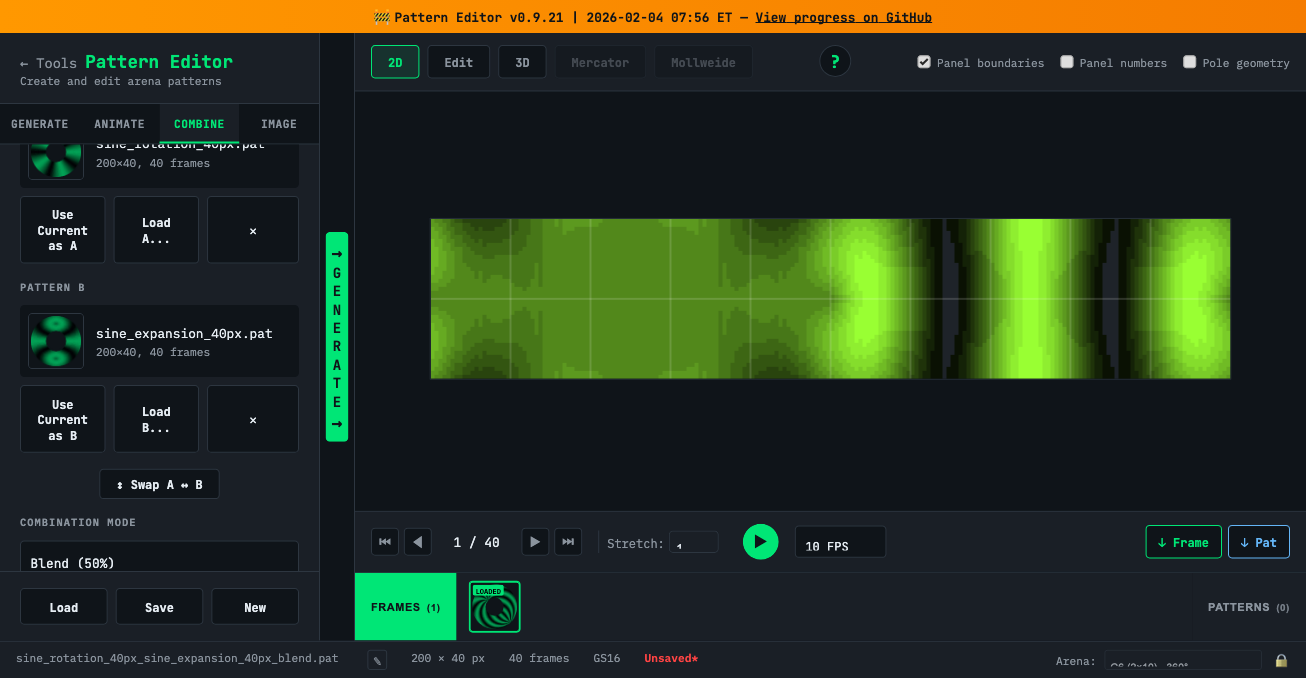
Workflow
- Generate or load your first pattern
- Click Use Current as A to capture it
- Generate or load your second pattern
- Click Use Current as B to capture it
- Select a Combination Mode
- Adjust mode-specific settings (threshold, split position)
- Click GENERATE to create the combined pattern
Combination Modes
| Mode | Description |
|---|---|
| Sequential | Concatenates A then B (A’s frames followed by B’s) |
| Mask | Shows B where A exceeds threshold (0-15) |
| Blend | Averages A and B pixel values (50/50) |
| Horizontal Split | Left portion from A, right from B |
| Vertical Split | Top portion from A, bottom from B |
Image Tab
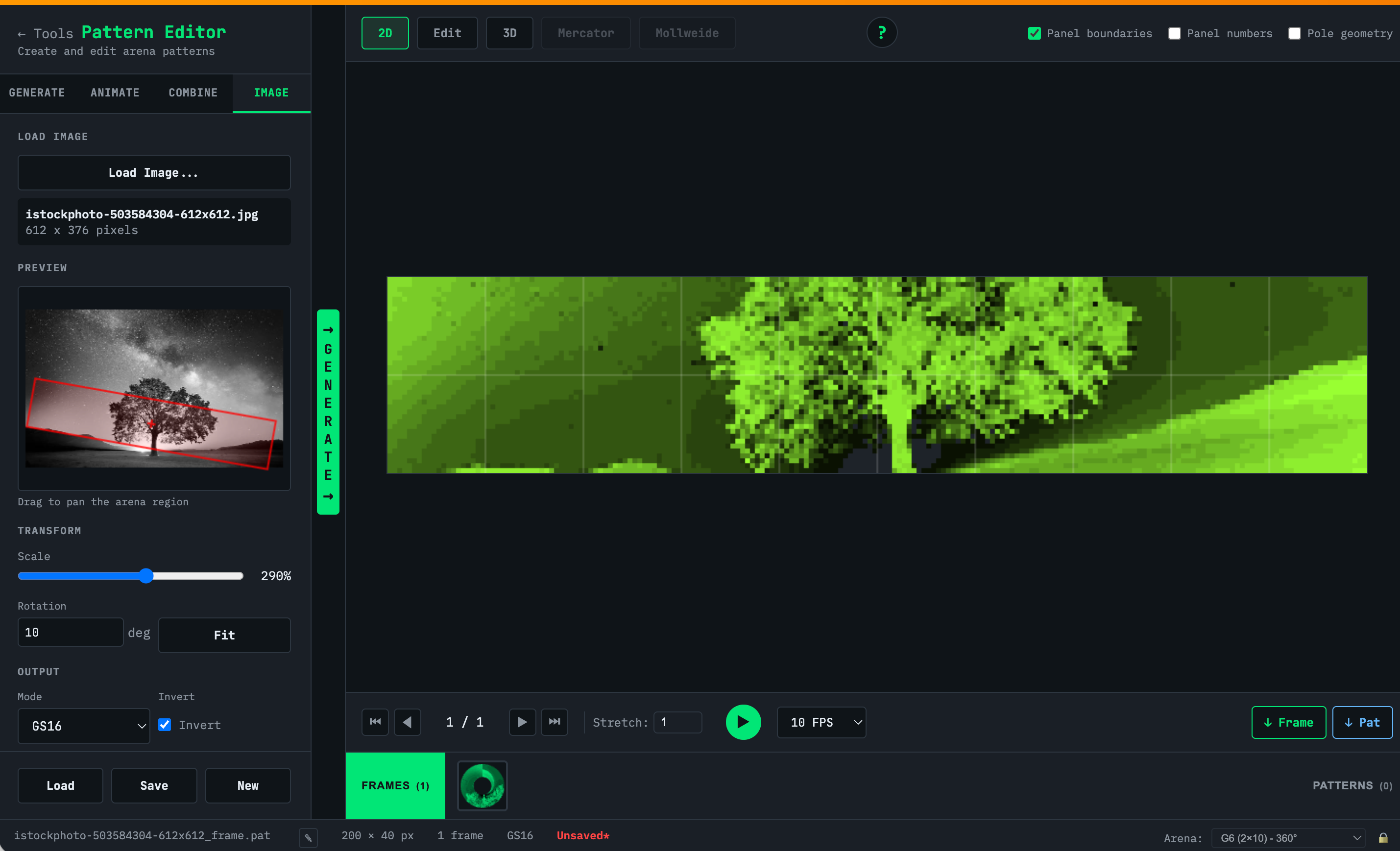
Convert raster images to arena patterns.
Workflow
- Click Load Image… to select a PNG or JPEG
- Use the preview to position the image - drag to pan
- Adjust Scale (10-500%) and Rotation (-180 to +180°)
- Click Fit to automatically fit the arena to image bounds
- Choose output Mode (GS16 or GS2) and optionally Invert
- Click GENERATE to create the pattern
Edit Mode
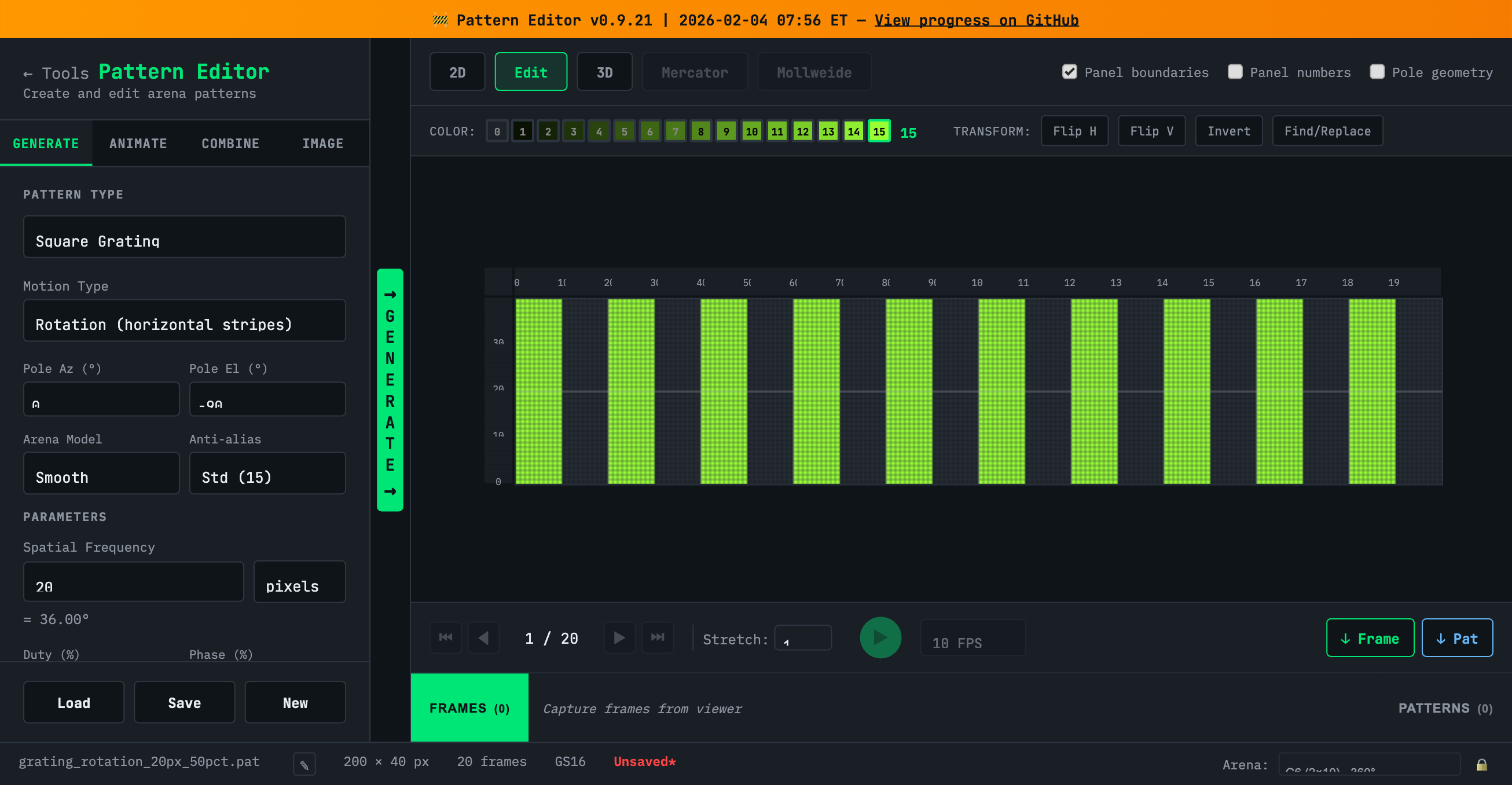
Interactive pixel editing for fine-tuning patterns.
Workflow
- Generate or load a pattern
- Click the Edit viewer tab
- Select a color from the palette (0-15 grayscale)
- Click pixels in the viewer to paint with the selected color
- Tip: Click on row numbers (left) or column numbers (top) to paint the entire row or column at once
- Use transform buttons for bulk operations:
- Flip H/V - Mirror horizontally or vertically
- Invert - Invert all pixel values
- Find/Replace - Replace all pixels of one value with another
3D View
Interactive visualization of the pattern on a cylindrical arena.
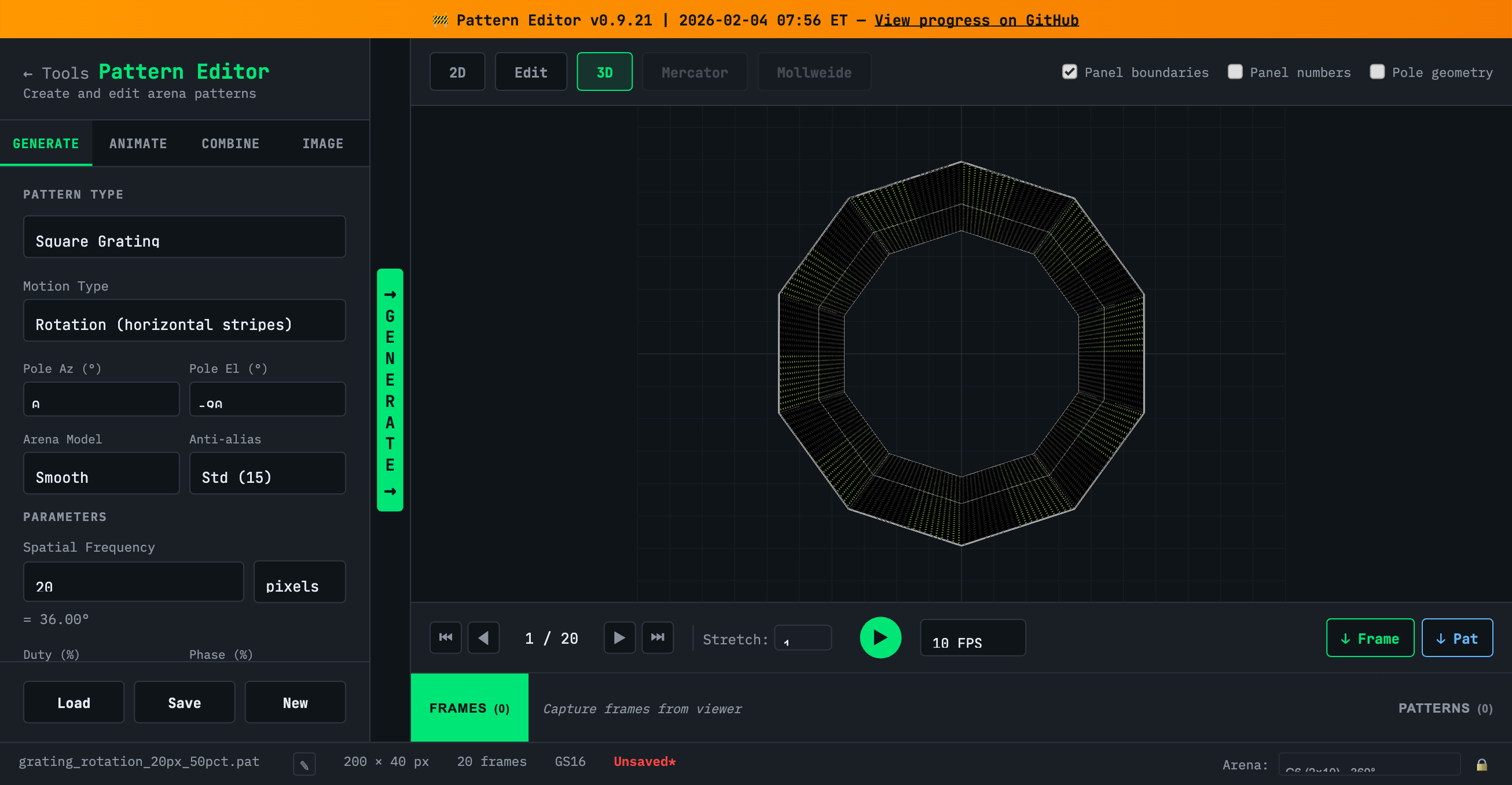
- Orbit - Click and drag to rotate the view
- Zoom - Scroll to zoom in/out
- Pan - Right-click and drag to pan
- Use playback controls to animate the pattern in 3D
Playback Controls
Located at the bottom of the viewer:
| Control | Function |
|---|---|
| ⏮ ◀ ▶ ⏭ | First, previous, next, last frame |
| Frame Counter | Shows current / total frames |
| Play Button | Start/stop animation |
| FPS | Playback speed (-30 to +30, negative = reverse) |
| Stretch | Vertical display stretch (1-255) |
Clipboard
The clipboard stores frames and patterns for building sequences and combining.
Two Tabs
- FRAMES - Single frames for editing, animation building, or reference
- PATTERNS - Complete multi-frame patterns for combining
Capturing
- ↓ Frame - Captures the current frame to the Frames clipboard
- ↓ Pat - Captures the entire pattern to the Patterns clipboard
Using Clipboard Items
- Click an item to preview it
- Double-click a frame to load it as the Frame Shifting source
- Hover to reveal the delete (X) button
Note: Clipboard contents are cleared when changing the arena configuration.
File Operations
Buttons
| Button | Function | |——–|———-| | Load | Open a .pat file from disk | | Save | Save current pattern as .pat file | | New | Create a blank pattern |
Status Bar
The bottom bar shows:
- Pattern filename (click ✎ to rename)
- Dimensions (width × height pixels)
- Frame count
- Grayscale mode (GS16/GS2)
- Red asterisk (✱) indicates unsaved changes
Arena Selection
- Use the dropdown to select target arena configuration
- Click the lock (🔒) to prevent accidental changes
- Warning: Changing arena clears the clipboard
Tips
- Automatic conversion: Spatial frequency shows pixel↔degree conversion automatically
- Frame count preview: Shown in green next to Step Size
- Keyboard navigation: Use arrow keys for frame-by-frame when viewer is focused
- Lock your arena: Prevents accidental configuration changes mid-session
- Save often: The red asterisk reminds you of unsaved changes
Version History
| Version | Date | Notes |
|---|---|---|
| v0.9.22 | 2026-02-04 | Current version documented in this guide |
See the Pattern Editor changelog for detailed version history.
| *Guide by Michael Reiser & Claude | View on GitHub* |